FOOTBALL - Saving Clips as Favorites
How to Save Clips as Favorites and Assign a Rating
To favorite clips, go to the My Video tab and select the game that you would like to review. Once the game is open, the clips will appear below the video player and a star icon will be to the right of each clip number, this is where you will favorite clips.
After reviewing each clip, you can assign each clip a rating by selecting the star icon and hovering over the rating you'd like to select. Once you've selected a rating, click the correlating star and the star rating will be applied.

Star ratings assigned in the clip list will only be shown to you in your QwikCut account and will not be shared with athletes.
How to Share Clip Rating with Athletes
Favoriting clips in the clip list will only have them appear for you. If you are a coach and would like different athletes to see these favorites/star ratings, you can assign ratings for different athletes in the video player. To do so, click the star in the bottom right corner of the video player.
Once you select the star in the video player, your list of athletes will appear. Hover over the athlete that you'd like to rate and the rating options will appear.
To assign a star rating to an athlete on that individual clip, hover over the rating that you'd like to assign and select it. You can also click cancel if you chose that athlete on accident.
Marking Big Plays When Reviewing Film
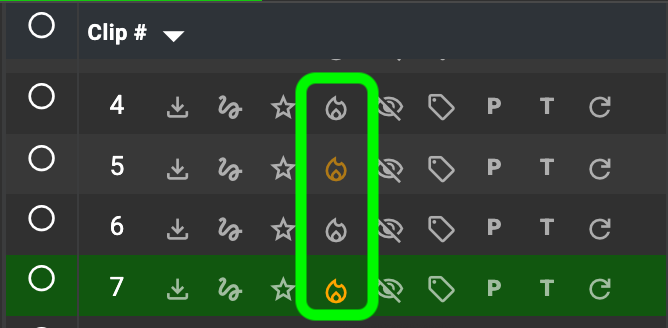
When reviewing film, you can keep track of big plays by using our Big Play button. The Big Play button is shown as a fire icon in the clip list, next to the favorite option.
Building Highlights Using Favorited Clips
Once you have favorited clips and assigned a rating to each one, navigate to the My Highlights tab and select New Highlight in the top right corner.
Now, select Custom Highlight from the dropdown to build a manual highlight using your favorited list.
- Selecting "Instant Auto-Highlight" or "Auto-Highlights' will not allow you to build a highlight using the clips you just favorited.
Complete the title page of your highlight and then go next to "Clips". Clips is where you will select the video to build your highlight with. Once on the Clips page, select Add Videos on the right side of the screen.
Once selected, the Clips and Media popup will appear. Select the Favorites option the the top right of the popup.
Once in the Favorites tab, you will be able to navigate between between My Favorites for all the ratings that you've assigned and "All Ratings" to show categorized rating. Choose between 1, 2, 3, 4, and 5 star rated clips. All rated clips will appear by default. Selecting to only show 5, 4, or 3 star clips will ensure you're only adding your best clips to your highlight.
Choose the clips that you want to add to your highlight or chose Select All to add all clips shown. Once all clips are selected, click "Add to Highlight" at the bottom right of the popup.
After your clips are added, we recommend selecting "Sort Rated" to move all your 5 star plays to the beginning of your highlight, followed by 4 star clips, 3 star clips, 2 star clips, and 1 star clips. Once your clips are in order, be sure the trim each clip. You can also add annotations and slo-mo if you choose to do so.
Once your highlight is cleaned up, select "Next: Music" in the bottom right corner to add music and finish creating your custom highlight.